How enable the rich text editor to the user with AttributedString in a TextEditor in SwiftUI
The use of AttributedString instead of String type is the way to allow users the rich text editing options on a TextEditor view
SOFTWARE DEVELOPMENTIOS DEVELOPMENTSWIFTUI
Eduardo Domínguez Menéndez
3/19/20262 min read
Use AttributedString instead of String
Enable the rich text editor for the user so he can set bold, italic, change the color of the text, the font and more... is trivial once you know the method. You must declare AttributtedString as the type associated to the State variable that stores the content of the Text Editor View.
You must note that the declaration of an AttributedString is done with empty brackets, no parameters:
@State private var text = AttributedString()
The declaration of the TextEditor is standard employing the State variable.
AttributedString SwiftUI example in action
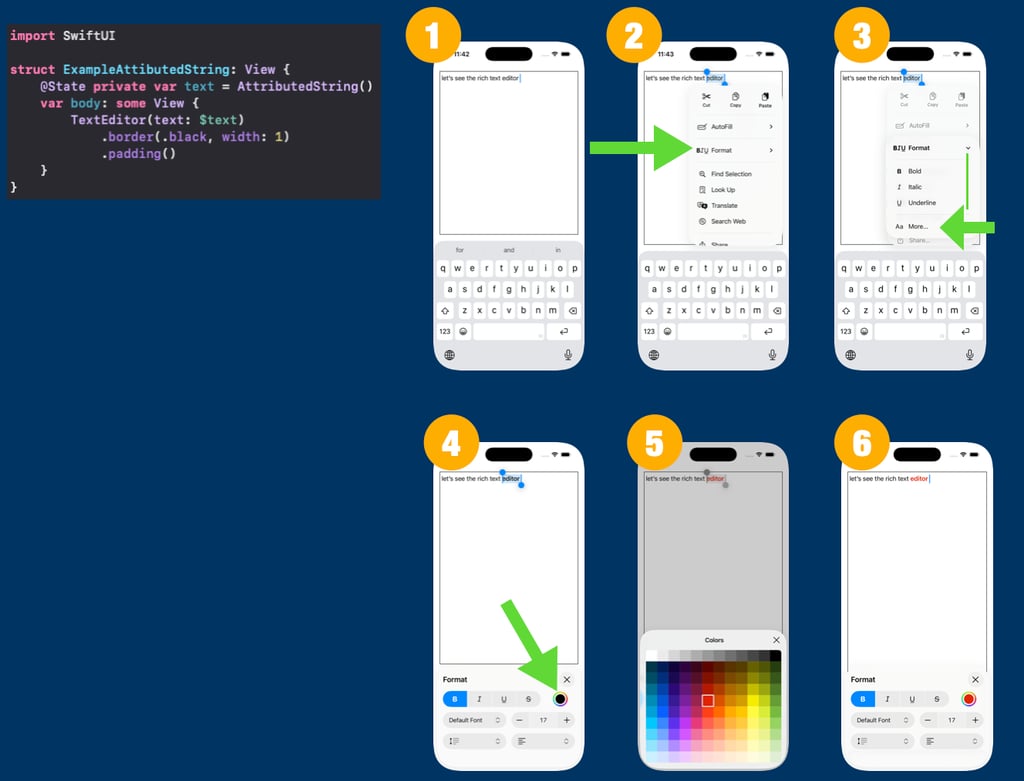
I provide a picture with a snippet code of SwiftUI and a sequence of snapshots where you can see in action how is the rich text editor. Like in a coding school, I will explain each part of the picture:
At the top left corner there is the SwiftUI code that's runs the example, you can see the declarations, is quite simple without adding extra components.
Now I explain each snapshot from the simulator:
User has entered a text without any change of the rich text editor
User selects a part of the text and activate the options, he must tap at "Format"
Then a bunch of options are displayed: Bold, Italic, Underline and More... User taps on Bold and the selected text becomes bold, then taps on More...
More... displays an advanced menu to change font, color,... User taps on the Picker of color
A panel with multiple colors to choose. User taps on red one.
We reach the final step, we can realize the font of the selected text has become red
Suggested Software Applications to improve your developer workflows
Prompt Creator
Generate the best prompts forgetting prompt engineering techniques and their extra verbose while you are drafting prompt. You focus in define the details of the task and Prompt Creator creates the best prompts following a template approach which seamlessly generates the extra verbose to launch the your Chat AI the best prompts.
GIS for Developers
A tool to collect locations on a map and transform them on entities of MapKit framework to import in Xcode ready to use in your projects. Boost your productivity on GIS projects. App has two two versions: native macOS and iOS for iPad.